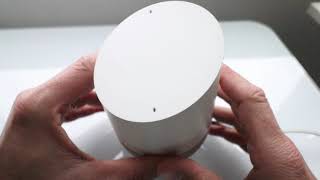
How Do I Factory Reset My Google Home Mini?
Resetting a Google Home Mini to its original factory settings can be a handy solution when the device stops responding, you’re planning to give it away, or you simply want a fresh start. This guide walks you through the two official methods—using the built‑in reset button and using the Google Home app—while also covering what to expect after the reset and how to troubleshoot common hiccups.
Why You Might Need a Factory Reset
A factory reset erases all personal data, Wi‑Fi credentials, and custom settings from the speaker. It is useful when:
- The device no longer connects to your network.
- Voice commands are consistently misinterpreted.
- You’re selling, gifting, or returning the speaker.
- Software glitches persist after a simple reboot.
When to Consider a Full Reset
Before you wipe everything, try these lighter steps first:
- Unplug the Mini for 30 seconds and plug it back in.
- Check for software updates in the Google Home app.
- Restart your Wi‑Fi router.
If the problem remains, a factory reset is the next logical step.
Factory Reset Using the Physical Reset Button
The Google Home Mini has a dedicated reset button that can be accessed without opening the device. Follow these precise steps:
- Locate the reset button. On the bottom of the Mini, near the power cord, you’ll find a small circular indent. This is the reset button.
- Press and hold. Using a thin object (such as a paperclip), press and hold the button for about 15 seconds.
- Listen for confirmation. After roughly 10 seconds, the speaker will announce that it is resetting. Continue holding until the lights flash amber and then turn white.
- Wait for the reboot. The Mini will restart automatically. This process can take up to a minute.
- Verify the reset. When the device finishes rebooting, it will say “Ready for setup.” At this point, all previous settings have been cleared.
Tip: Keep the Mini plugged in during the entire process. Removing power mid‑reset can corrupt the firmware.
Factory Reset Using the Google Home App
If you prefer a software approach, the Google Home app on your smartphone or tablet offers a straightforward reset option.
- Open the Google Home app. Ensure you’re signed in with the same Google account that controls the Mini.
- Select the device. Tap the Mini’s icon on the home screen to open its settings page.
- Access Device Settings. Tap the gear icon (or “Settings”) to open the device menu.
- Find “Factory reset.” Scroll down to the “Reset” section and choose “Factory reset.”
- Confirm the action. A pop‑up will ask you to confirm. Tap “Reset” to proceed.
- Wait for the device to reboot. The Mini will announce that it is resetting, then restart automatically.
After the reboot, the Mini will be ready for a fresh setup, just as it was when you first unboxed it.
What Happens After a Factory Reset?
Re‑setup Process
Once the Mini says “Ready for setup,” you’ll need to reconnect it to your Wi‑Fi network and re‑link it to your Google account. The steps are:
- Open the Google Home app and tap the “+” button to add a new device.
- Select “Set up new device” and follow the on‑screen instructions.
- Choose your Wi‑Fi network and enter the password.
- Assign a name (e.g., “Living Room Mini”) and a voice match if desired.
- Finish the setup and test a voice command to confirm everything works.
All previous routines, preferences, and linked services will need to be recreated.
Common Issues and How to Fix Them
Reset Button Doesn’t Respond
If pressing the button yields no response, try these troubleshooting steps:
- Ensure the Mini is firmly plugged into a working outlet.
- Use a different thin object to press the button—sometimes the tip can be too blunt.
- Leave the device unplugged for a minute, then plug it back in and attempt the reset again.
App‑Based Reset Fails
When the app method stalls, consider the following:
- Restart the Google Home app and try again.
- Check that your phone’s Bluetooth and Wi‑Fi are active; the app communicates with the Mini over the local network.
- Update the Google Home app to the latest version from