How To Pair Google Home Mini
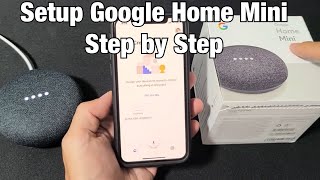
Pairing a Google Home Mini involves two distinct processes: linking the device to your home Wi‑Fi network and, when desired, connecting it to Bluetooth speakers or headphones. Both steps are handled through the Google Home app, which guides you with on‑screen prompts. This article walks you through each stage, from the first plug‑in to troubleshooting tips, so you can enjoy voice‑controlled music, smart‑home commands, and hands‑free calls without confusion.
Prepare Your Google Home Mini
Before you begin, make sure you have the following items ready:
- A stable Wi‑Fi network (2.4 GHz or 5 GHz) with the password at hand.
- A smartphone or tablet running the latest version of the Google Home app (available for iOS and Android).
- The Google Home Mini plugged into a power outlet using the supplied adapter.
- If you plan to use Bluetooth, the target speaker or headphones turned on and set to pairing mode.
Connect to Wi‑Fi
The first connection establishes the Mini on your home network, which is required for all subsequent features.
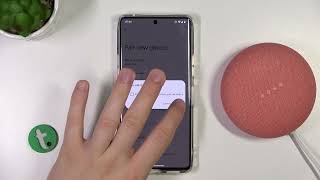
- Open the Google Home app and tap the + icon to add a new device.
- Select “Set up device” then “New devices” and choose the home you want the Mini to belong to.
- The app will search for nearby devices; when your Mini appears, tap its name.
- Follow the on‑screen instructions to confirm the device’s LED pattern, ensuring you’re pairing with the correct unit.
- When prompted, select your Wi‑Fi network, enter the password, and wait for the Mini to confirm a successful connection.
- After the connection is verified, the app may suggest a brief tutorial; you can skip it if you’re comfortable with the basics.
Enable Bluetooth Pairing
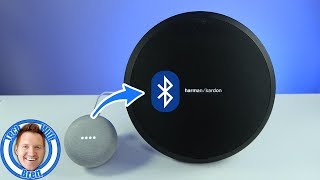
Once the Mini is online, you can pair it with external Bluetooth audio devices for richer sound or private listening.
- In the Google Home app, locate your Mini on the home screen and tap the device icon.
- Tap the gear icon to open Settings, then scroll to “Audio” and select “Paired Bluetooth devices.”
- Choose “Enable Pairing Mode.” The Mini will announce that it’s ready to pair.
- On your Bluetooth speaker or headphones, activate pairing mode (usually a button or voice command).
- The Mini will display the device name in the app; tap it to confirm the pairing.
- After a brief confirmation tone, the devices are linked, and you can start streaming audio via voice commands.
Pairing with a Smartphone or Tablet
If you prefer to use your phone’s Bluetooth connection for media playback, the steps are similar but start from the mobile device.
- Open the Bluetooth settings on your phone and ensure Bluetooth is turned on.
- Place the Google Home Mini in pairing mode as described above.
- Your phone should list “Google Home Mini” among available devices; select it.
- When the connection is established, you’ll hear a confirmation chime from the Mini.
- You can now say “Hey Google, play jazz on Bluetooth” to direct audio to the paired device, or use any supported music service.
Troubleshooting Common Issues
If the pairing process stalls, consider these quick fixes before resetting the device.
- Wi‑Fi problems: Verify that your router’s guest network is disabled for the Mini, as some guest setups block device communication.
- Bluetooth interference: Keep the Mini and the Bluetooth speaker within a few meters and avoid obstacles like thick walls or microwaves.
- App glitches: Close the Google Home app completely, then reopen it and repeat the pairing steps.
- Outdated firmware: The Mini receives automatic updates; however, a stalled update can hinder pairing. Restart the Mini by unplugging it for 10 seconds.
Tips for a Stable Connection
Following these practices helps maintain a reliable link between your Mini and other devices.
- Place the Mini on a stable surface away