Iphone 12 Mini Unlocking: An In‑Depth Guide
The iPhone 12 Mini is a compact powerhouse, but its locked status can be a hurdle for many users. Whether you bought a second‑hand device, switched carriers, or simply forgot your passcode, understanding the proper steps for Iphone 12 Mini unlocking is essential. This article walks you through the most reliable methods, highlights potential pitfalls, and offers practical tips to keep your device secure.
Why Unlocking Matters
Unlocking an iPhone 12 Mini can refer to three distinct scenarios:
- Carrier unlocking – removing the network lock so the phone works with any SIM.
- Passcode unlocking – regaining access after a forgotten or mistyped passcode.
- iCloud unlocking – bypassing Activation Lock when the original Apple ID is unavailable.
Each situation requires a different approach, and using the wrong method can lead to data loss or permanent lockout. Below, we break down each pathway step by step.
Carrier Unlocking the Iphone 12 Mini
Most iPhone 12 Mini units sold through carriers come with a SIM lock. To use the phone with another carrier, follow these steps:
- Confirm that your device is eligible for unlocking. Carriers typically require the phone to be fully paid off and active for a minimum period (often 60‑90 days).
- Contact your current carrier’s support line or use their online portal. Provide the IMEI number, which you can find by dialing *#06# or navigating to Settings → General → About.
- Request an unlock code or an “unlock request” through the carrier’s system. Most major carriers now process unlocks electronically, so no code is needed.
- After the carrier confirms the unlock, insert a SIM card from the new carrier. The iPhone should automatically recognize the new network.
- If the device does not immediately show the new carrier’s signal, restart the iPhone or go to Settings → General → Reset → Reset Network Settings.
Remember to keep a copy of the unlock confirmation email or ticket, as you may need it for future reference.
Passcode Unlocking: When You Forget the Code
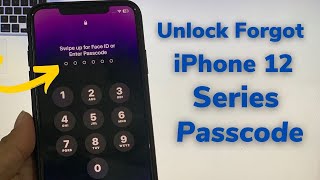
If you’ve entered the wrong passcode too many times, the iPhone 12 Mini will disable itself temporarily and eventually erase all data (if the “Erase Data” option is enabled). To regain access:
- Connect the iPhone to a computer with iTunes (Windows or macOS Mojave) or Finder (macOS Catalina and later).
- Put the device into Recovery Mode: press and quickly release the Volume Up button, press and quickly release the Volume Down button, then hold the Side button until the recovery screen appears.
- When prompted on the computer, choose “Restore.” This will download the latest iOS firmware and reinstall it, wiping the device.
- After the restore completes, set up the iPhone as new or restore from a recent backup. If you have an encrypted backup, you’ll need the backup password.
While this method erases the data on the phone, it is the only official way to bypass a forgotten passcode without third‑party tools that may violate Apple’s terms.
Unlocking iCloud Activation Lock
The Activation Lock is tied to the Apple ID that was originally used to set up the iPhone. If you acquire a used iPhone 12 Mini and the previous owner did not remove their Apple ID, you’ll see a screen asking for the original credentials. The legitimate ways to resolve this are:
- Contact the previous owner and ask them to sign out of iCloud remotely via iCloud.com. They should select “Find iPhone,” locate the device, and choose “Remove from Account.”
- If you have proof of purchase (receipt with serial number or IMEI), visit an Apple Store. Apple can verify ownership and may remove the Activation Lock on a case‑by‑case basis.
- Do not rely on unofficial unlocking services that claim to “bypass iCloud.” These tools often require jailbreaking, expose personal data, and can render the device unusable.
Using iTunes/Finder for a Clean Unlock
Regardless of the lock type, a clean restore through iTunes or Finder is a reliable fallback. Here’s a concise checklist:
- Back up your data to iCloud or a computer before starting.
- Ensure the computer has the latest version of iTunes or macOS.
- Follow the Recovery Mode steps described earlier.
- Select “Update” first to attempt a repair without data loss. If that fails, proceed with “Restore.”
- After the process, sign in with your own Apple ID. The device will be fully unlocked from the previous account.
Precautions and Best Practices
Unlocking an iPhone 12 Mini is straightforward when you follow